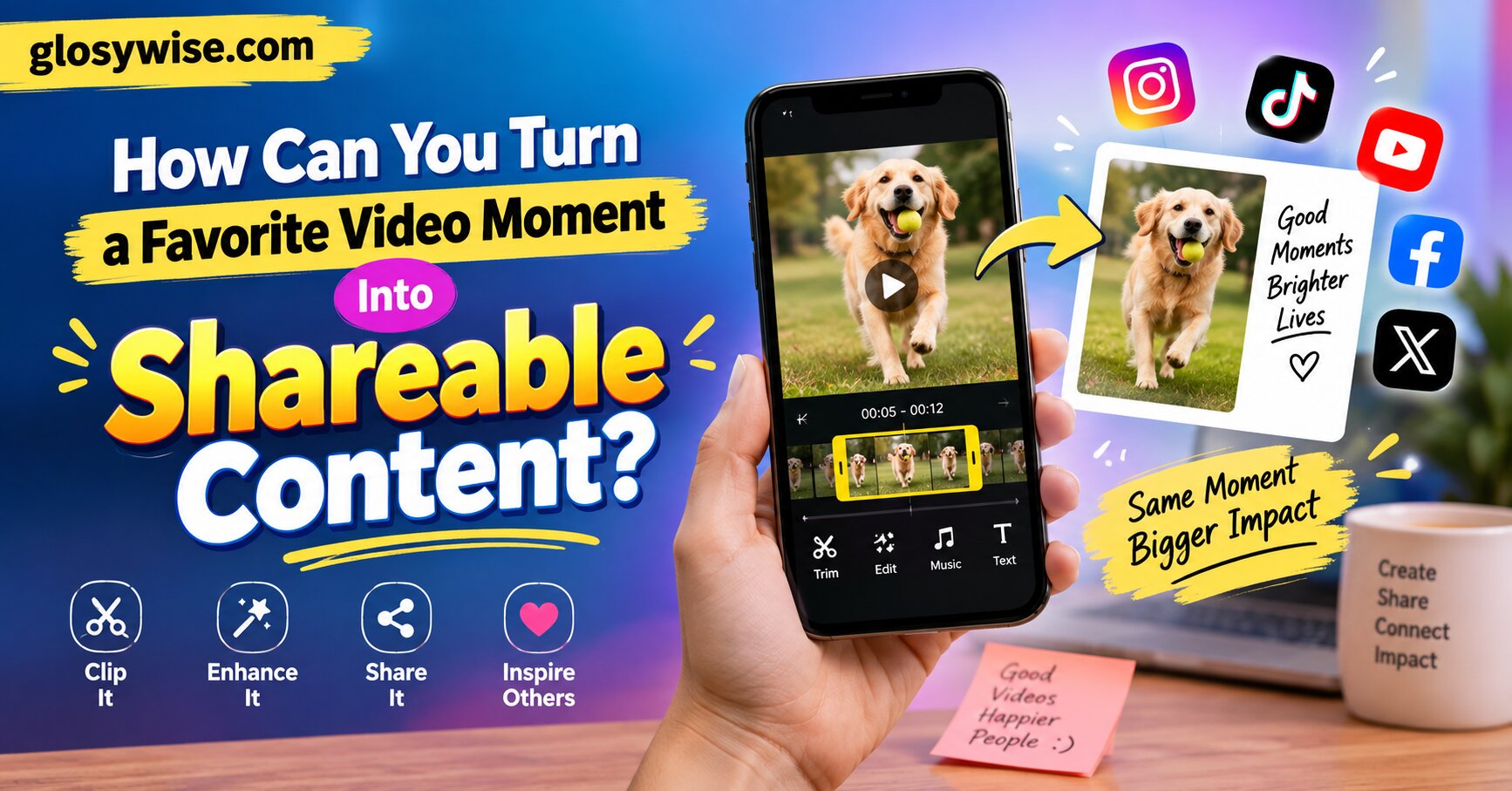
How Can You Turn a Favorite Video Moment Into Shareable Content?
A great video often contains one moment that deserves a life of its own. It might be a funny reaction, a useful demonstration, an impressive game play, or a few seconds that perfectly capture an emotion. Instead of asking people to watch an entire video, you can isolate that moment and turn it into content that is easier to share, understand, and remember. With careful editing and tools such as a GIF maker, you can transform a short clip into a GIF, looping animation, social post, or visual reaction without losing what made the original moment interesting.
Why Do Short Video Moments Work So Well as Shareable Content?
Short visual content asks very little from the viewer. Someone can understand a reaction GIF or a brief clip in seconds, even while scrolling quickly through a busy feed. This makes short-form visuals useful for social media posts, group chats, blog content, community discussions, and even educational material.
The important part is not simply making a video shorter. A good shareable moment has its own beginning and payoff. Imagine a 20-minute cooking video where the host flips a pancake and catches it perfectly. The full tutorial provides context, but those three seconds can stand alone as an entertaining visual. In another example, a long gaming session might contain a surprising win that becomes much more engaging when isolated as a short looping clip.
Short clips also make communication more visual. Instead of describing a facial expression or memorable action, you can show it. This is one reason GIFs remain useful across digital conversations. They can express humor, surprise, excitement, frustration, or approval with little or no additional explanation.
Key takeaway: The best shareable moments are short, easy to understand, and focused on one clear action, emotion, or idea.
What Makes a Video Moment Worth Sharing?
Not every interesting part of a video will work when removed from its original context. Before editing, ask whether a person who has never watched the full video could understand or enjoy the selected moment.
Look for a clear focal point. A strong clip usually contains one main subject or event rather than several things competing for attention. Reactions, transformations, demonstrations, reveals, unexpected outcomes, and visually satisfying movements tend to translate well into standalone content.
Timing matters too. Starting too early leaves viewers waiting for something to happen. Starting too late can remove the setup that makes the payoff understandable. Watch the moment several times and identify the shortest section that still tells the complete miniature story.
You should also consider visual quality. A slightly imperfect recording can still work, especially when the content is funny or spontaneous. However, extremely dark footage, severe camera shake, or a subject hidden outside the frame can make a short clip difficult to understand.
A useful selection checklist includes:
- One obvious subject, action, or reaction
- A moment viewers can understand quickly
- Little unnecessary footage before or after the main event
- Enough context for the moment to make sense
- Clear movement or facial expression
- A resolution that remains acceptable after cropping or resizing
Key takeaway: Choose a moment that can stand on its own and remove every second that does not support its main idea.
How Can You Turn a Video Clip Into a GIF?
A GIF is a digital image format that can display a sequence of frames as an animation. Animated GIFs often loop automatically, which makes them useful for short reactions, demonstrations, and memorable video moments.
Key takeaway: A GIF turns a brief sequence of frames into an animation that can replay automatically without requiring viewers to start a conventional video.
Creating one begins with selecting the source video and trimming it around the exact action you want to preserve. For many reaction-style GIFs, a few seconds is enough. Longer animations create larger files and can weaken the impact of the original moment.
Next, upload or import the clip into a GIF maker or compatible editing tool. Set clear start and end points, then preview the loop. Look closely at what happens when the last frame returns to the first. A smooth transition makes repeated viewing feel natural. However, a perfectly seamless loop is not always necessary. A funny reaction or surprising event can work well with an obvious restart.
Before exporting, consider dimensions, frame rate, and image quality. Higher settings can produce smoother or sharper animations, but they also increase file size. The goal is to keep enough detail for the action to remain clear without creating an unnecessarily heavy file.
Key takeaway: Trim first, preview the loop, and balance visual quality with file size when converting video into an animated GIF.
How Should You Crop and Format a Favorite Video Moment?
The original video’s shape may not suit the place where you plan to share it. A wide landscape recording, for example, can look small when placed in a vertical mobile feed. Cropping lets you bring the important subject closer to the viewer.
Start by identifying what must remain visible throughout the entire clip. If a person moves from one side of the frame to the other, an aggressive crop may cut them off halfway through. Preview the full sequence after changing the aspect ratio rather than judging the crop from a single frame.
Different publishing environments also favor different layouts. Vertical formats often make better use of smartphone screens, while square or landscape formats may fit other feeds, articles, or desktop experiences. Platform requirements change over time, so check the current specifications of the service where you intend to publish.
Avoid enlarging a small section of a low-resolution source too much. Digital cropping removes pixels from the visible frame, and heavy enlargement can make the result look blurry or blocky. Starting with the highest-quality version of the source video gives you more flexibility.
Key takeaway: Format content for its destination, but keep the main action visible from the first frame through the last.
Should You Add Text or Captions?
Text can make a short video moment easier to understand, particularly when dialogue or context matters. It can also help people following content without audio. However, text should support the visual rather than cover it.
For spoken clips, use concise captions that match the dialogue accurately. For reactions or demonstrations, a short line may provide enough context. A clip showing a failed cooking experiment, for example, might need only a few words to explain what the person was attempting.
Use a readable font size and strong contrast between the letters and background. Position captions where they do not hide faces, hands, controls, or other important details. Keeping text inside safe margins also reduces the chance that interface elements will cover it on social platforms.
Accessibility deserves attention as well. The World Wide Web Consortium’s guidance on captions and multimedia accessibility explains why captions are important for people who are deaf or hard of hearing. Clear captions can also help viewers in noisy environments or situations where playing audio is inconvenient.
Key takeaway: Add text when it improves context or accessibility, but keep it brief, readable, and away from important visual details.
When Is a GIF Better Than a Short Video?
GIFs and short videos solve slightly different problems. A GIF works particularly well when the moment depends on visual repetition rather than sound. Facial reactions, gestures, quick demonstrations, and small movements are good examples.
A short video is usually the better option when sound carries essential information. Dialogue, music, environmental audio, and spoken instructions may lose their meaning when converted to a silent animated format. Video compression can also be more efficient than GIF for longer or more visually complex footage.
Consider where people will encounter the content. If you want an animation that immediately repeats inside a conversation, article, or message, a GIF can be convenient. If you need richer detail, sound, or a longer narrative, keep the moment as a video clip.
There is no reason to limit yourself to one version. One memorable source moment can become a GIF for conversations, a captioned vertical clip for a social feed, and a still image for a thumbnail or supporting visual.
Key takeaway: Choose GIF for short, repeatable visual moments and video when audio, detail, or a longer sequence is essential.
How Can You Make the Final Content More Shareable?
Technical editing matters, but the idea behind the content matters more. People tend to share material when it gives them a reason to pass it along. A clip may be funny, useful, relatable, surprising, impressive, or emotionally recognizable.
Remove unnecessary setup whenever the context allows it. If the meaningful action lasts four seconds, a 15-second introduction may discourage viewers before they reach it. Starting close to the action makes the content easier to consume.
You can also create variations for different uses instead of publishing the same file everywhere. A clean loop might work well inside an article, while a version with captions may suit a social feed. For broader guidance on creating and presenting digital visuals, relevant tutorials in the Glosywise blog can help you explore related editing and content ideas.
Before sharing, view the finished content on a phone as well as a larger screen. Check whether the text is readable, the focal point is obvious, and the first frame makes sense. A simple final review often catches problems that are difficult to notice while editing.
Key takeaway: Shareability comes from a strong moment first and smart editing second. Keep the result immediate, clear, and appropriate for its destination.
What Should You Know About Copyright Before Sharing Video Moments?
Being able to download or edit a video does not automatically mean you have permission to republish it. Copyright can apply to online videos, movies, television programs, livestreams, music videos, and other creative works.
The safest approach is to work with video you created yourself or material you have permission or a suitable license to reuse. Public-domain and appropriately licensed content can provide other options, but you should read the relevant license terms before editing or redistributing it.
Rules such as fair use can be complex and depend on context. In the United States, the U.S. Copyright Office’s fair use information explains that there is no fixed number of seconds, words, or percentage that automatically makes unauthorized use lawful. Factors such as purpose, nature of the original work, amount used, and market effect can matter.
When in doubt, do not assume that making a clip short or turning it into a GIF removes copyright concerns.
Key takeaway: Use your own footage, licensed material, or content you have permission to reuse, and do not assume that a short clip is automatically free to republish.
Step-by-Step Guide: Turn One Video Moment Into Shareable Content
A simple workflow can prevent you from overediting a moment that was already effective in its original form:
- Watch the full moment. Identify the exact action, reaction, or information you want viewers to notice.
- Set the start and end points. Keep enough context for the clip to make sense while removing unnecessary footage.
- Choose the format. Decide whether a GIF, short video, or still image best suits the content.
- Crop for the destination. Keep the focal point visible and select an appropriate aspect ratio.
- Add captions when useful. Make dialogue and essential context understandable without relying entirely on sound.
- Optimize the file. Balance dimensions, frame rate, compression, and quality.
- Preview on different screens. Check readability, cropping, playback, and looping.
- Confirm usage rights. Make sure you have the right to edit and share the source.
- Export and publish. Save a high-quality master when possible so you can create additional versions later.
Keeping the original file is particularly useful. If you later need another crop or format, you can create it from the best available source rather than repeatedly compressing an already edited copy.
Key takeaway: Select, trim, format, caption, optimize, check rights, and preview before publishing.
Frequently Asked Questions
How long should a GIF made from a video be?
There is no universal ideal length, but shorter usually works better for a single reaction or action. Trim the animation to the shortest duration that preserves the setup and payoff.
Quick answer: Keep a GIF only as long as necessary to communicate one complete moment.
Can I turn any video into a GIF?
Technically, many common video files can be converted into animated GIFs. Legally, you should only republish footage when you own it, have permission, or otherwise have the appropriate right to use it.
Quick answer: Most videos can be converted technically, but permission and copyright still matter when you share the result.
Does a GIF include sound?
Standard GIF files do not contain audio. If dialogue, music, or sound effects are essential to the moment, a short video is usually a better format.
Quick answer: GIFs are silent, so choose video when sound is essential.
Why does my GIF look blurry?
Blur can result from a low-resolution source, heavy cropping, small export dimensions, or aggressive optimization. Start with the best source available and avoid enlarging a small portion of the frame too far.
Quick answer: Better source quality and less aggressive cropping or compression usually produce a clearer GIF.
Should I add captions to a short video clip?
Add captions when speech or other audio information helps viewers understand the moment. Accurate captions also make spoken content accessible to more people.
Quick answer: Caption clips when audio carries meaning, and keep the captions clear, accurate, and readable.
How Can One Great Video Moment Keep Working After the Original Video Ends?
A memorable moment does not have to disappear inside a long recording. Careful trimming can turn it into a focused piece of content that communicates an idea, reaction, joke, or useful demonstration within seconds. Choosing the right format is just as important. A GIF can make a short visual action instantly repeatable, while a conventional video preserves sound and richer detail.
Focus on the moment before focusing on effects. Remove unnecessary footage, crop around the subject, add useful captions, preserve visual quality, and respect the rights attached to the source. With that approach, one small part of a video can become clear, accessible, and genuinely worth sharing.
Final takeaway: Start with a moment that deserves attention, then use thoughtful trimming, formatting, captions, and responsible sharing to turn it into content that works beyond the original video.